

When you log in to Paikkatietoikkuna, you can save map views to your account, create new places and download them to your computer, create embedded map and thematic map indicators, create your own styles and upload datasets. All of these are available under My Data.
Return to Instructions of Paikkatietoikkuna -website.
My account
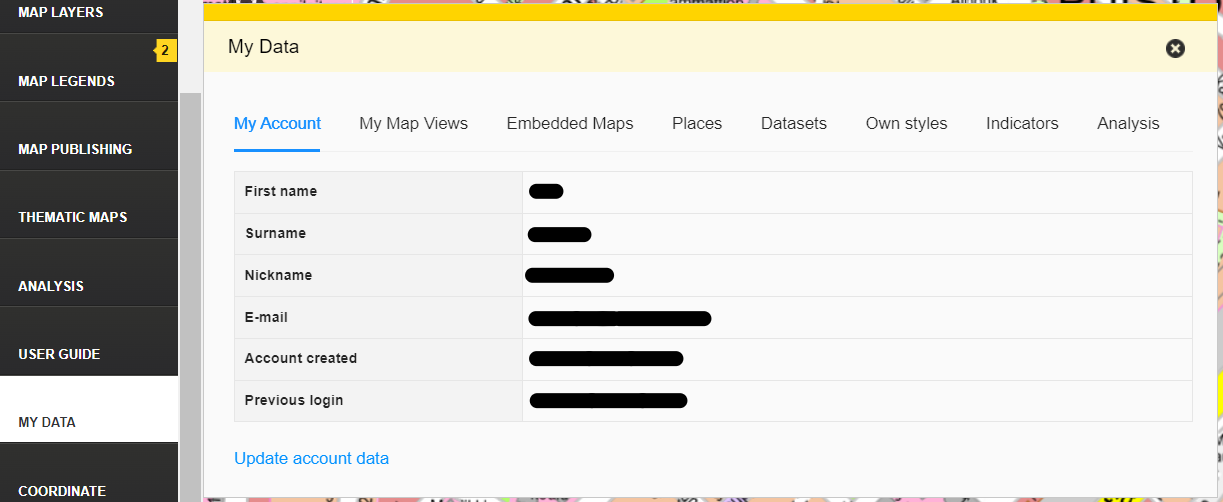
The My Account tab shows you which name, nickname and email address your ID was created with. It also shows when your account was created and your last login. You can update your data by clicking “Update account data”. You will be redirected to log in to the National Land Survey of Finland’s My Account service (Omatili), where you can update your data after you have logged in.
If you would like your data to be transferred to another email address, please contact us using the feedback form before creating a new account in the My Account service (Omatili). On the feedback form, select at field "My case concerns" The Finnish Geoportal Paikkatietoikkuna.
My Map Views
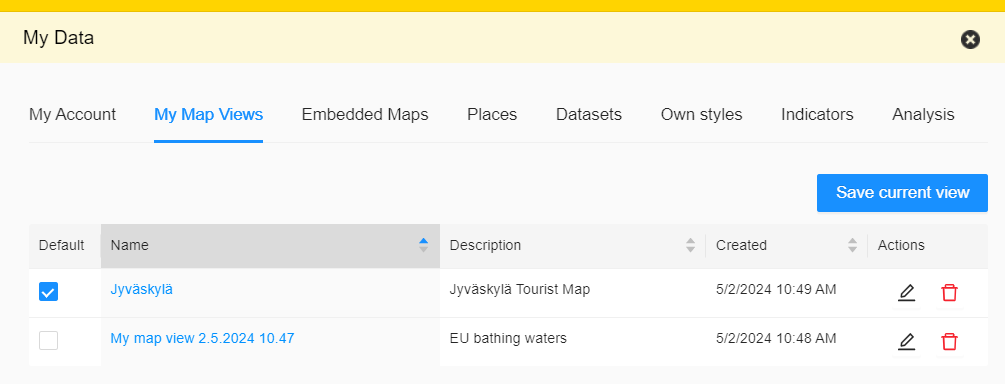
On the My Map Views tab, you can view the map views you have saved. By clicking the name of a view, it will open in Paikkatietoikkuna. You can filter the maps by name, description and creation date by clicking the names of the columns. If you want Paikkatietoikkuna to open to a certain view, you can select it as your default view by clicking the box in the Default column. Use the tools in the Actions column to edit the information of the map view (pen icon) or delete the map view (waste bin icon).
You can save the map view with the “Save view” tool (camera) or by clicking “Save current view” on the My Map Views tab. Give the map view a name and a description. Click the box under “Default” if you want the map view to open as default when you log in to Paikkatietoikkuna.
Embedded maps
The Embedded Maps tab shows your saved embedded maps. Instructions for creating an embedded map.
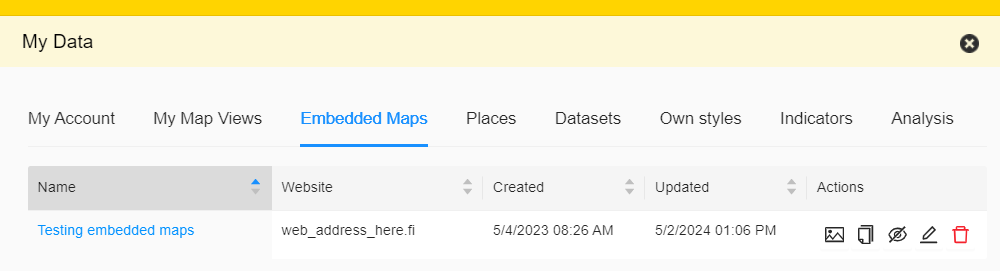
On the Embedded Maps tab, you can use the Map publication function to see your maps embedded on other websites. You can filter the maps by name, website, creation date and updates by clicking the names of the columns. When you click the name of an embedded map, the map will open in a separate window.
In the Actions column, you can open an embedded map in the Paikkatietoikkuna map view (image icon), copy the map’s HTML code (copy icon), cancel the publication of the map or republish it (eye icon), edit a published map (pen icon) and delete a published map (waste bin icon).
Own Styles
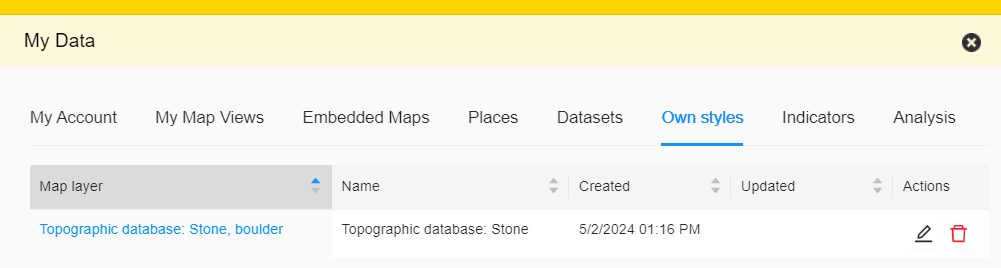
On the “Own Styles” tab, you can view, edit and delete styles you have saved.
How to create a style on a map layer:
- Select a map layer in the Map Layers menu that you want to create a style for.
- Click to open the “Selected Layers” tab in the Map Layers menu.
- On the right side of your desired layer, click the pen icon and edit the layer’s style by changing its colour, the shape of the corners and line style.
- Once you click save, the style you created will show up on the “Own Styles” tab under “My Data”. You can create several styles for the same layer.
Indicators
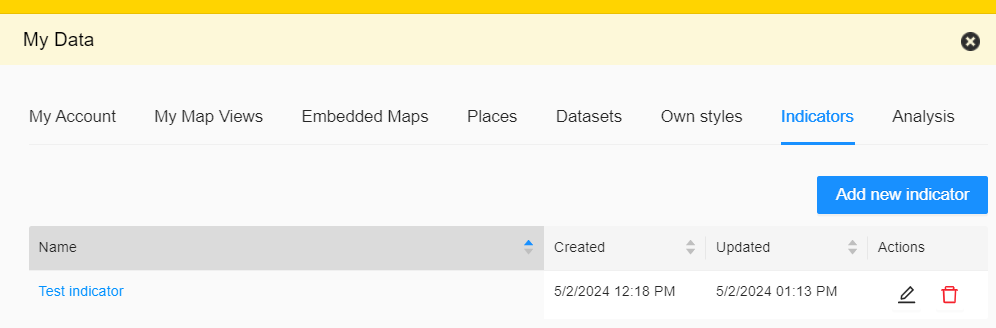
The Indicators tab shows the indicators you have created.
You can edit the information of an already created indicator by clicking the pen icon or delete the indicator by clicking on the waste bin icon.
You can also create a new indicator by clicking “Add New Indicator”. On the “Indicator Data” tab on the pop-up window, you can give the indicator a name, description and source. On the Statistical Data tab, you can add the year related to the indicator and select the regionset in the drop-down menu. By clicking Add, you can add statistical data for the indicator. Click Save to save the information you have entered.
Datasets
On the Datasets tab, you can view the datasets you have saved in Paikkatietoikkuna. The datasets contain either features you have added to the map or features you have imported to Paikkatietoikkuna from a file.
You can create a new dataset or edit existing datasets, for example by adding a new feature:
- New dataset: Click New dataset or import a dataset using the Import your own datasets tool.
- View dataset: Click the dataset name to display it on the map. You can view feature information by clicking the feature or using the Feature data table.
- Edit dataset information: Click the pencil button next to the dataset name.
- Add feature: Click the pencil button and select Add feature, or use the Add feature tool in the tool menu.
- Delete dataset: Click the trash button. Note: This deletes all features in the dataset.
- Download dataset: Click the rightmost button for the dataset and save the dataset to your computer in GeoJSON format.
Learn more about the Add feature and Import datasets tools.